Settings Reference
Each Granular Note Actor has fields that can be used to display the note in a way that is visually distinct.
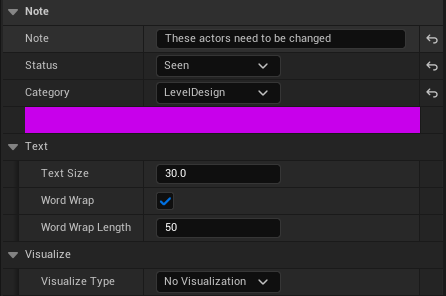 Note Actor in the Details Panel. The colour band seen is based on the
 Category chosen.
Basic settings
| Name |
Description |
Type |
Note |
Type whatever information the note needs to convey here. |
Text/string field |
Status |
A 'status' can be considered a sort of a progress report on the note. |
Dropdown List (See below) |
Category |
A 'category' can be considered the domain or responsibility the note is associated with. |
Dropdown List (See below) |
Status and Category options
| Name |
Default Options |
Type |
Status |
Open, Seen, Progress, Urgent, Blocked |
Texture Icon |
Category |
None, Audio, Gameplay, LevelDesign, Environment |
Colour |
Text Settings
| Name |
Description |
Type |
Text Size |
The size of the note text in the level. |
Number |
Word Wrap |
Enable or disable word wrap on the written note |
Boolean |
Word Wrap Length |
Number of characters after which words will wrap to next line |
Number |
Visualization settings
| Name |
Description |
Type |
Visualize Type |
The note can be used to point to actors, or denote a specific area that it is relevant to. |
No Visualization, Point to actors, Draw Sphere, Draw Box, Draw Cylinder |
Point to actors
| Name |
Description |
Type |
Actor List |
List of actors the note should point towards |
Array |
Line Thickness |
Thickness of pointer arrow and line |
Number |
Draw Sphere/Box/Cylinder
| Name |
Description |
Type |
Radius/Height/Size |
Change the size of visualization. Different for each shape. |
Number/Vector |
Thickness |
Thickness of visualization outline |
Number |